
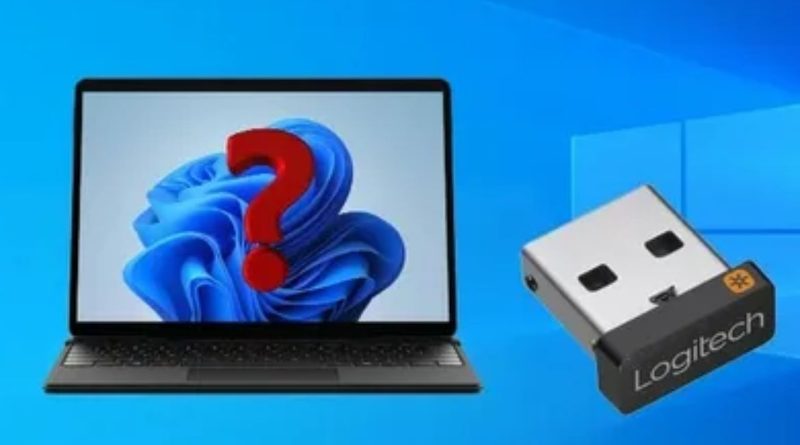
Logitech Unifying Software Download: The Ultimate Guide to Managing Your Wireless Devices
In today’s digital workspace, managing multiple wireless devices efficiently is crucial for productivity. The Logitech Unifying Software Download offers a seamless solution for users looking to connect and manage up to six compatible Logitech devices using a single USB receiver. This comprehensive guide will walk you through everything you need to know about this essential utility.
Understanding the Logitech Unifying Technology
Before diving into the download process, it’s important to understand what makes the Unifying technology special. Logitech’s Unifying receiver is a tiny USB dongle that allows you to connect multiple compatible wireless devices without occupying multiple USB ports on your computer. This innovative approach not only saves valuable port space but also simplifies device management.
Why You Need the Logitech Unifying Software Download
The Unifying Software serves as the bridge between your devices and the receiver. Here’s why it’s essential:
- Device Pairing: The software enables you to pair new devices with your existing Unifying receiver
- Connection Management: Easily view and manage all connected devices
- Battery Status Monitoring: Keep track of battery levels for all connected peripherals
- Device Customization: Access device-specific settings and features
- Troubleshooting Tools: Diagnose and resolve connection issues efficiently
System Requirements and Compatibility
Before proceeding with the Logitech Unifying Software download, ensure your system meets these requirements:
Windows:
- Windows 8 or later
- 50MB free disk space
- Available USB port
- Internet connection for download
macOS:
- macOS 10.13 or later
- 30MB free disk space
- Available USB port
- Internet connection for download
Step-by-Step Installation Guide
- Preparation Phase
- Close any running Logitech applications
- Ensure you have administrator privileges
- Back up any existing device settings
- Download Process
- Visit the official Logitech support website
- Navigate to the Software Downloads section
- Select your operating system
- Choose the latest version of Unifying Software
- Installation Steps
- Run the downloaded installer
- Follow the on-screen instructions
- Accept the license agreement
- Choose installation location
- Wait for the installation to complete
- Initial Setup
- Launch the software
- Insert your Unifying receiver
- Follow the pairing wizard
- Add your devices one by one
Maximizing Your Unifying Experience
Once you’ve completed the Logitech Unifying Software download and installation, consider these tips for optimal performance:
Device Management Best Practices:
- Keep devices within 20 feet of the receiver
- Avoid metal objects between devices and receiver
- Regularly check for software updates
- Monitor battery levels proactively
- Clean device sensors periodically
Troubleshooting Common Issues
Even with proper setup, you might encounter occasional issues. Here are solutions to common problems:
- Connection Drops
- Check battery levels
- Reduce distance from receiver
- Remove potential interference sources
- Re-pair affected devices
- Device Not Recognized
- Ensure device compatibility
- Replace batteries
- Try different USB ports
- Reinstall software if necessary
- Software Not Functioning
- Update operating system
- Clear temporary files
- Reinstall with administrator rights
- Check for conflicts with other software
Advanced Features and Tips
The Unifying Software offers several advanced features worth exploring:
- Custom Profiles
- Create device-specific settings
- Set up application-based configurations
- Configure special button assignments
- Save and export profiles
- Power Management
- Adjust sleep settings
- Optimize battery usage
- Set up low battery notifications
- Configure power-saving modes
- Multi-Computer Setup
- Use Flow technology (if supported)
- Switch between multiple computers
- Share files across devices
- Synchronize settings
Security Considerations
Protecting your wireless devices is crucial. Consider these security measures:
- Regular Updates
- Keep software current
- Apply firmware updates
- Monitor security bulletins
- Enable automatic updates
- Connection Security
- Use encryption features
- Protect pairing process
- Secure physical access
- Monitor connected devices
Future-Proofing Your Setup
To ensure long-term reliability:
- Maintenance Schedule
- Regular software updates
- Physical cleaning
- Battery replacement
- Connection testing
- Backup Procedures
- Save device settings
- Document configurations
- Keep spare batteries
- Maintain backup receivers
Professional Use Cases
The Unifying technology is particularly valuable in professional settings:
- Office Environments
- Clean desk setups
- Multiple device management
- Shared workstation solutions
- Professional presentation tools
- Creative Workspaces
- Precision input devices
- Customizable controls
- Ergonomic solutions
- Workflow optimization
Environmental Impact
Logitech’s Unifying technology contributes to sustainability:
- Reduced E-Waste
- Fewer USB receivers
- Extended device lifespan
- Efficient battery usage
- Sustainable materials
- Energy Efficiency
- Optimized power consumption
- Smart sleep modes
- Battery life optimization
- Reduced replacement need
Conclusion
The Logitech Unifying Software download represents more than just a utility – it’s a comprehensive solution for modern wireless device management. Whether you’re a professional seeking to optimize your workspace or a home user looking to simplify your setup, the software provides the tools and features needed for efficient device control.
By following this guide and implementing the suggested best practices, you can ensure a smooth and productive experience with your Logitech wireless devices. Remember to regularly check for updates and maintain your devices to maximize their longevity and performance.
Future Updates and Support
Logitech continues to improve the Unifying technology through regular updates. Stay connected with the Logitech community and support resources to learn about new features and improvements as they become available. Whether you’re a new user or upgrading your existing setup, the Logitech Unifying Software download remains your gateway to enhanced wireless device management.
FAQs
Logitech Unifying Software is a utility program that allows you to connect multiple compatible Logitech wireless devices (keyboards, mice, trackballs) to a single USB receiver, freeing up valuable USB ports on your computer.
You can connect up to 6 compatible Logitech wireless devices to a single Unifying receiver.